
Your phone already saves the GPS position inside each photo, as long as the camera is allowed to use location. But it's hidden in the photo's details, it's coordinates rather than an address, and it's removed when the photo is shared through most apps.
Turn on location for your phone's camera
iPhone: Settings › Privacy & Security › Location Services › Camera, then choose While Using the App and turn on Precise Location.
Android: open the Camera app's settings and turn on the location option (it's called Location tags or Save location on many phones), and make sure Location is on in quick settings.
This saves the place in the hidden details. To see it, swipe up on the photo in Photos or Google Photos; see how to see when and where a photo was taken.
Show the address on the photo itself
A GPS camera app draws the location onto the photo as you take it, so anyone can see it at a glance, and it survives sharing. In Timesnap, every photo and video shows the street, town, postcode and country, with the verified date and time.
- Install Timesnap and allow location access, with precise location on.
- Give the address a moment to appear on the camera screen. Outdoors, GPS is usually accurate to a few metres.
- Take the photo. The address, date and time are drawn into it, and the exact coordinates and GPS accuracy are kept in its proof record.
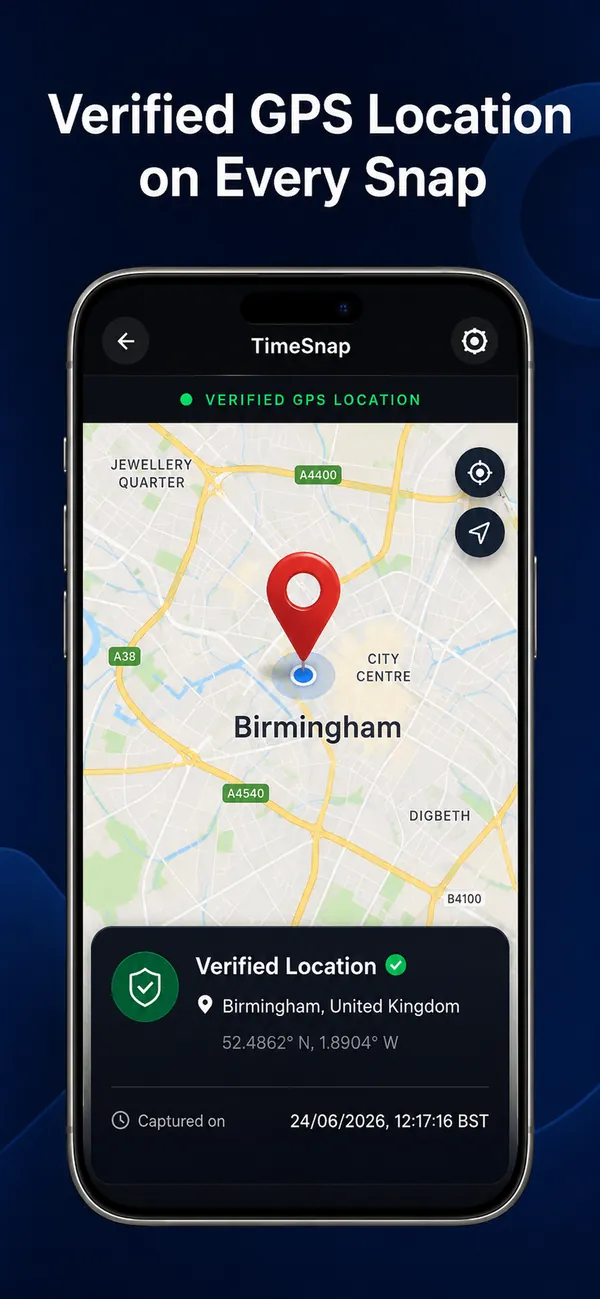
With Timesnap Pro you can also add a small map to the stamp, and choose a nearby address (within 200 metres) when the nearest one isn't quite right, for example the building next to a car park.
Can a photo's location be faked?
Yes, in several ways: location-spoofing apps can tell a phone it's somewhere else, editing apps can change the location saved in a photo, and any editor can write an address onto a picture. A place on a photo is only as trustworthy as the way it got there.
Timesnap reads the location when the photo is taken, notes when the phone's location looked simulated, and keeps the coordinates and their accuracy in the photo's record on our servers. Anyone checking the photo on timesnap.info sees the place on a map (streets, satellite or 3D) with how accurate the GPS was, and a warning if the location looked simulated.
 Take photos with the real time and place on them: get the free Timesnap camera.
Tips for accurate locations
- Give GPS a few seconds outdoors before taking important photos.
- Indoors, accuracy is lower; if the exact building matters, take one photo outside or near a window first.
- Keep Wi-Fi switched on: phones use nearby networks to improve accuracy, even without connecting to them.
- If the address looks wrong, check the map: the coordinates are what count.